
Download Firefly Media Server – free iTunes sharing tool for Mac
Overview
Firefly Media Server is a lightweight, GPL‑licensed application designed especially for macOS users who want to stream their iTunes library across a local network. First released in 2011, the program remains a solid choice for anyone looking for a free, secure way to turn a Mac into an iTunes hub without the bloat of commercial alternatives. The software runs on Mac OS X and earlier versions, offering a simple graphical interface that integrates directly with iTunes, enabling other devices—such as iPhones, iPads, Apple TVs, and even non‑Apple media players—to browse and play songs, playlists, and podcasts stored on the host computer.
Because it is built on open‑source principles, updates are community‑driven, and the code can be inspected for security or customized for niche environments. Although the last official update was posted on August 10 2011, the program still functions reliably on modern macOS releases when run in compatibility mode or with minor tweaks. With over 2,400 downloads since its catalog entry, Firefly Media Server has proven to be a trusted solution for home users, small offices, and hobbyist audio enthusiasts who value a no‑cost, easy‑to‑install media sharing tool.
Key Features
- Seamless iTunes integration – Detects your iTunes library automatically and updates in real time as you add or remove tracks.
- Local network streaming – Shares music to any DLNA‑compatible device or Apple device on the same Wi‑Fi or Ethernet network.
- Low‑resource footprint – Requires less than 30 MB of disk space and minimal CPU usage, leaving the host Mac free for other tasks.
- Open‑source GPL license – Free to download, modify, and redistribute, with full source code available for inspection.
- Cross‑device compatibility – Works with iOS, Android, Windows, and Linux clients that support standard media server protocols.
- Secure local sharing – No external internet exposure; all traffic stays within your private network.
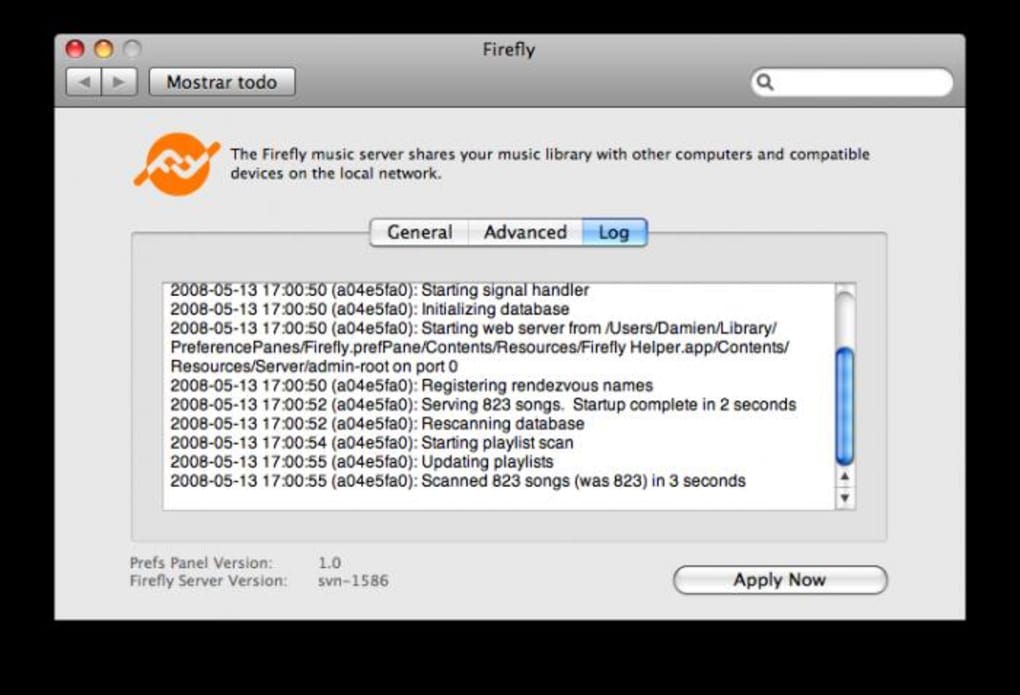
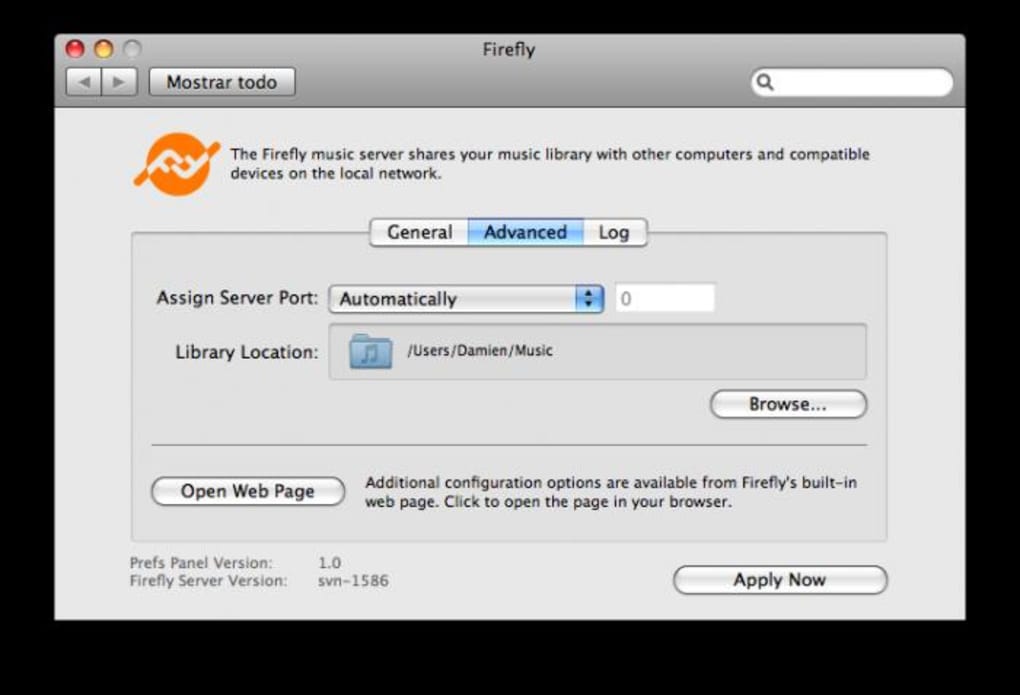
- Simple user interface – One‑click activation from the menu bar, with optional advanced settings for port configuration and transcoding.
Installation, Usage & Compatibility
Step‑by‑step installation
- Download the latest Firefly Media Server dmg file from the official site or a trusted mirror.
- Open the dmg and drag the Firefly Media Server icon to your Applications folder.
- Launch the application; macOS may ask you to confirm that you trust the developer—click “Open”.
- When prompted, grant the app access to your iTunes library and network permissions in System Preferences → Security & Privacy.
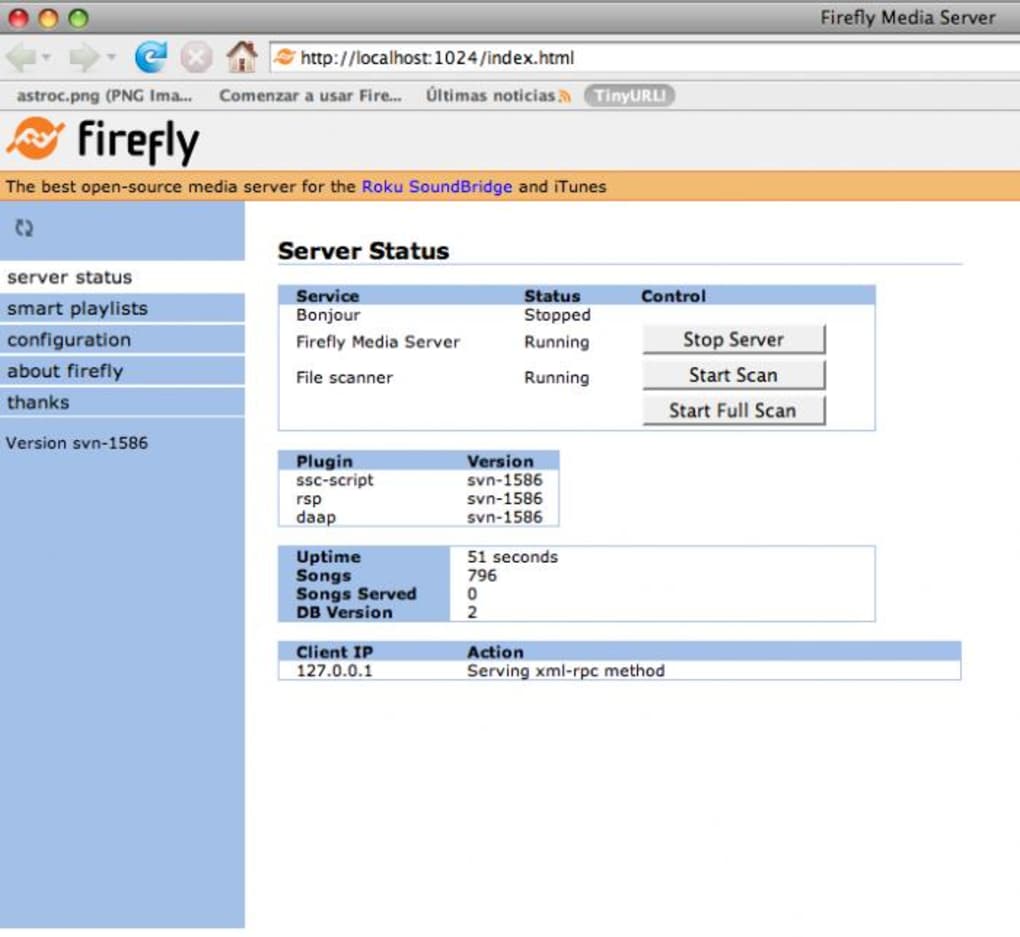
- Firefly will appear as an icon in the menu bar; click it to start the server. The status light turns green when the service is active.
How to use the server
Once the server is running, any DLNA‑compatible client on the same subnet can discover “Firefly Media Server” automatically. On an iPhone or iPad, open the built‑in Music app, tap “Library”, then select “Shared”. Choose the Mac that hosts Firefly, and you’ll see all your iTunes playlists, albums, and tracks ready to stream. For non‑Apple devices, such as a Samsung Smart TV or a Windows PC running VLC, simply add a network location pointing to http://[your‑mac‑ip]:8000/ (or the custom port you configured) and browse the shared media.
Operating system support
Firefly Media Server was originally built for Mac OS X 10.5 Leopard and later. While the binary was compiled for 32‑bit Intel Macs, it still runs on macOS Big Sur and Monterey when launched in Rosetta 2 (for Apple Silicon) or with the “Open using Rosetta” option. Users of macOS Ventura may need to disable Gatekeeper temporarily or allow the app under “Security & Privacy → General”. The software does not have native Windows, Android, or iOS versions, but its DLNA output can be accessed from those platforms using third‑party media players.
Pros, Cons & Frequently Asked Questions
Pros
- Completely free and open source – no hidden fees or subscription models.
- Extremely low system requirements, ideal for older Macs.
- Zero‑configuration discovery on most devices via standard DLNA.
- Secure local‑only sharing protects your library from external threats.
- Regular community patches keep the software usable on newer macOS releases.
Cons
- No built‑in transcoding; high‑resolution files may not play on low‑powered devices.
- Interface is minimalist and may feel outdated compared to modern streaming apps.
- Last official update was in 2011, so official support is limited.
- Only macOS client; Windows users must rely on third‑party DLNA clients.
- Requires manual permission adjustments on newer macOS versions.
FAQ
Is Firefly Media Server still safe to use on modern macOS?
Yes. Although the last official release dates back to 2011, the application runs in Rosetta 2 on Apple Silicon and under standard compatibility settings on Intel Macs. It does not open any ports to the internet, so the risk is limited to your local network.
Can I stream videos or only audio?
Firefly Media Server focuses on iTunes audio content. While it can expose video files that are part of your iTunes library, playback depends on the client’s ability to decode the format, and there is no on‑the‑fly transcoding.
Do I need to keep iTunes open for the server to work?
No. Firefly reads the iTunes library database directly, so you can close iTunes after the initial scan. Any changes made while iTunes is closed will be detected the next time iTunes is launched.
How do I change the default streaming port?
Open the Firefly preferences from the menu bar icon, go to the “Network” tab, and enter a custom port number. Remember to update any firewall rules accordingly.
Is there a mobile app that works with Firefly?
Firefly uses standard DLNA/UPnP, so any iOS or Android app that supports these protocols (such as VLC, BubbleUPnP, or iTunes Remote) can discover and stream from the server without a dedicated client.
Conclusion & Call to Action
Firefly Media Server remains a compelling option for Mac users who need a free, secure, and straightforward way to share their iTunes collection across a home network. Its tiny footprint and open‑source nature make it especially attractive for older hardware or users who prefer not to rely on subscription‑based streaming services. While the lack of recent official updates and limited UI polish are drawbacks, the community‑driven patches and broad device compatibility keep the tool functional for everyday listening. If you’re looking to turn your Mac into a lightweight music hub without spending a dime, downloading Firefly Media Server is a logical first step.
Ready to give your iTunes library a new audience? Download Firefly Media Server now and start streaming your favorite tracks to every device on your local network.
Overall Rating: 4/5
Pros: Free, low‑resource, easy setup.
Cons: No built‑in transcoding, UI dated.







